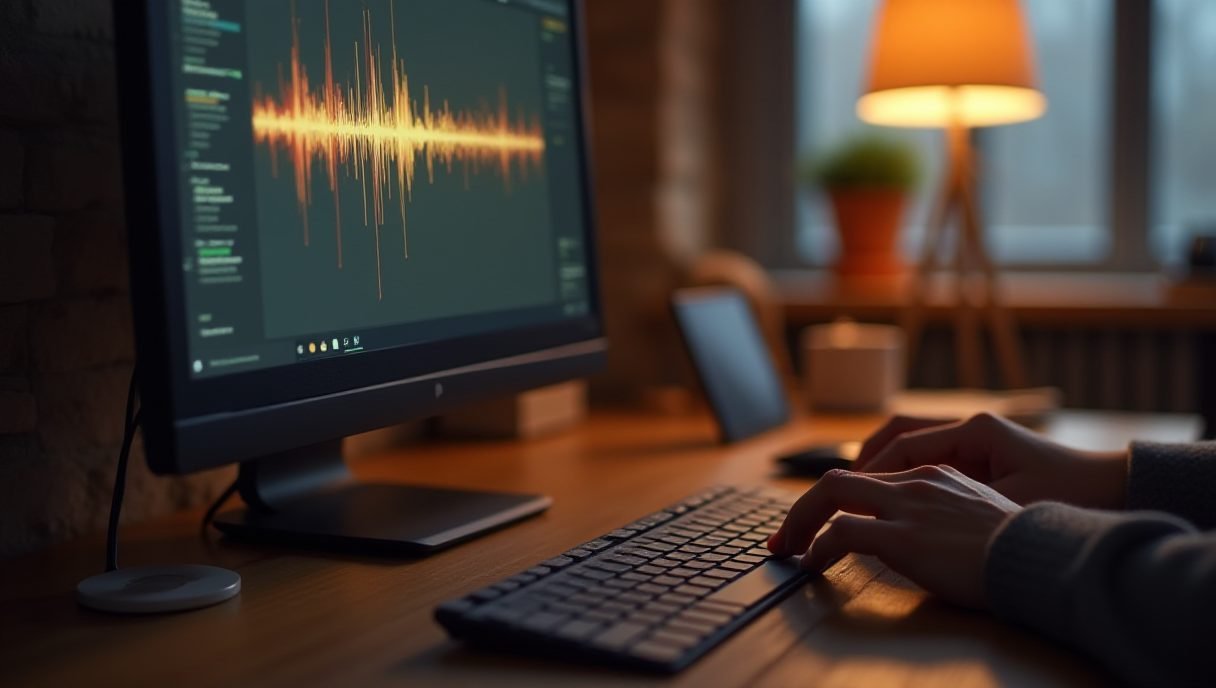
I Made a Push-to-Talk Windows App So I Could Talk to Home Assistant From My Desk
I sit at my PC for most of the day. And every time I wanted to turn off a light or check a sensor, I had two annoying options: grab my phone, or buy yet another smart speaker for the office.
Home Assistant already has a great voice assistant called Assist. The problem? I couldn’t find a simple “hold a key and talk” app for Windows. So I made push-to-talk happen myself.
What I Built: AssistKey
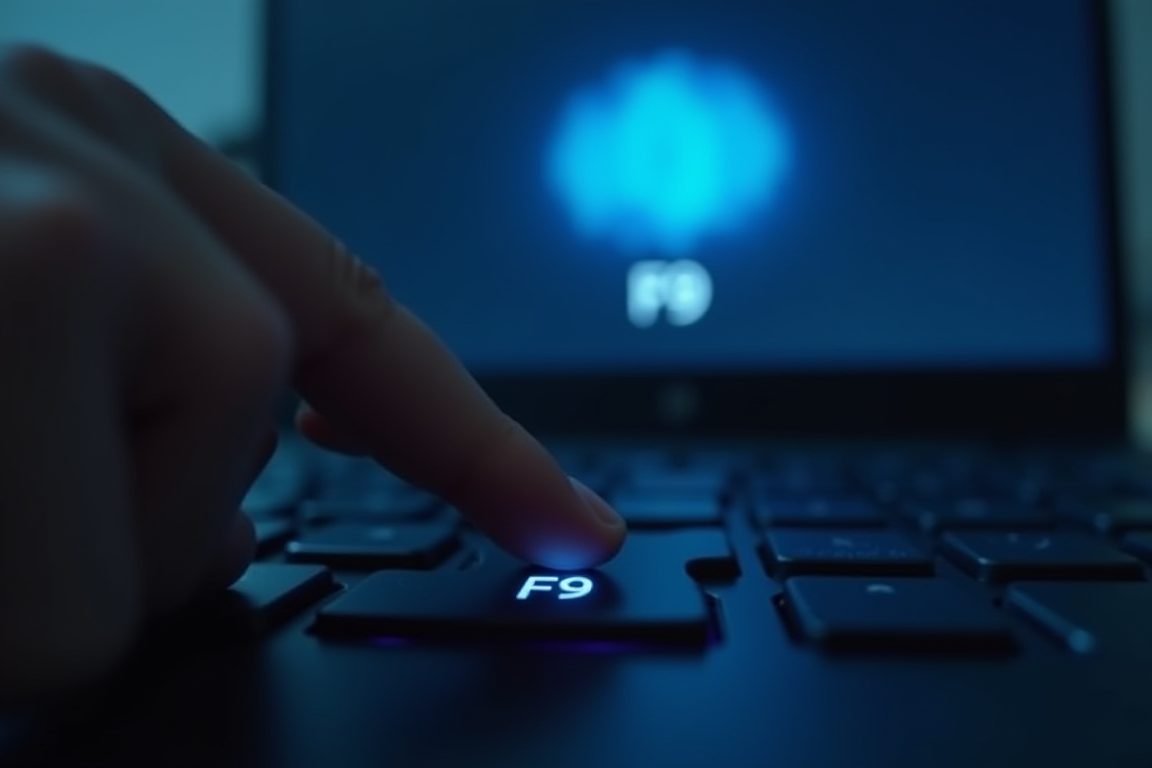
AssistKey is a tiny app that lives in your Windows system tray — that little area next to the clock. You hold down a hotkey, say what you want, and let go. That’s it.
A small popup slides up showing three things in order: Listening, then the words it heard you say, then the assistant’s answer as it streams in. The answer also gets spoken out loud through your speakers, so you don’t even have to look at the screen.
Think of it like a walkie-talkie for your smart home. Push, talk, release, done.
Why This One Works Better for Me
Here’s the part that actually matters: AssistKey doesn’t bring its own voice engine. It plugs straight into whatever Assist pipeline you’ve already set up in Home Assistant — that’s the chain that handles speech-to-text, the brain that decides what to do, and text-to-speech.
Already running Whisper and Piper locally? Great, it uses those. Prefer a cloud pipeline or an LLM agent? Also fine. I made push-to-talk the simple layer on top — not a replacement for your setup.
It also doesn’t send your audio to some random server. The app just talks to Home Assistant’s WebSocket API over your own network. No add-ons installed inside HA either, so it works whether you run HA OS, Container, Supervised, or Core.
How to Try It in About 30 Seconds
No Python, no command line, no config files. I made push-to-talk setup genuinely painless:
- Download AssistKey.exe from the releases page — it’s one self-contained file.
- Run it and enter your Home Assistant URL plus a long-lived access token (you generate this in your HA user profile under Security).
- Hold F9 and start talking.
One heads-up: the app isn’t code-signed, so Windows SmartScreen might throw a warning the first time. Click More info → Run anyway. If you’d rather not trust a random exe, the full source code is in the repo so you can read it or build it yourself.
Things You Need (Pro Tips)
A few extras that made the experience better for me:
- A decent USB microphone — I use a Blue Yeti, but even a basic Logitech webcam mic works fine for short commands.
- A mechanical keyboard with programmable keys — a Keychron or similar lets you remap the push-to-talk key to something comfier than F9.
- A Raspberry Pi 5 running Home Assistant — if you’re not on HA yet, this is the easiest way to host it, and it’s plenty fast for local Whisper.
Frequently Asked Questions
Does AssistKey send my voice to the cloud?
Do I need to install anything inside Home Assistant?
Why does Windows show a SmartScreen warning?
Can I change the push-to-talk hotkey?
If you live at your desk like I do, this little app removes the last bit of friction between you and your smart home. I made push-to-talk work the way I always wished it would — hold, speak, done — and honestly, I can’t go back to reaching for my phone.
ชอบบทความนี้? ค้นพบสินค้าที่เกี่ยวข้องบน Shopee